
Streamline your data: How to Integrate Google Sheets with OutSystems Applications
In this comprehensive guide, I will explain how you can use Google Sheets as a data source and integrate it with OutSystems connectors. Spreadsheets are commonly used in organizations and are often critical systems of record, essential for business operations. However, updating and managing data manually in spreadsheets can be time-consuming and prone to errors. Integrating spreadsheets into OutSystems applications allows companies to transition from traditional spreadsheets to a more organized data management approach using applications. This integration also enables the development of new use cases based on pre-existing information stored in a spreadsheet.
Join me for a hands-on tutorial on enhancing your business processes by integrating Google Sheets with OutSystems. This tutorial is designed to equip you with the skills and knowledge to leverage existing spreadsheet data in new and innovative ways efficiently.
Use Case: Managing Cake Orders with Google Sheets
Consider a small home-based business, such as "Homemade Birthday Cakes," where the owner uses a Google Form to collect cake requests. These requests are automatically populated into a Google Sheet. This setup is crucial for maintaining an organized record of all cake orders and delivery deadlines.
Integrating this system with OutSystems allows the business owner to streamline the process, ensuring that every customer's request is tracked and managed efficiently from submission to delivery.
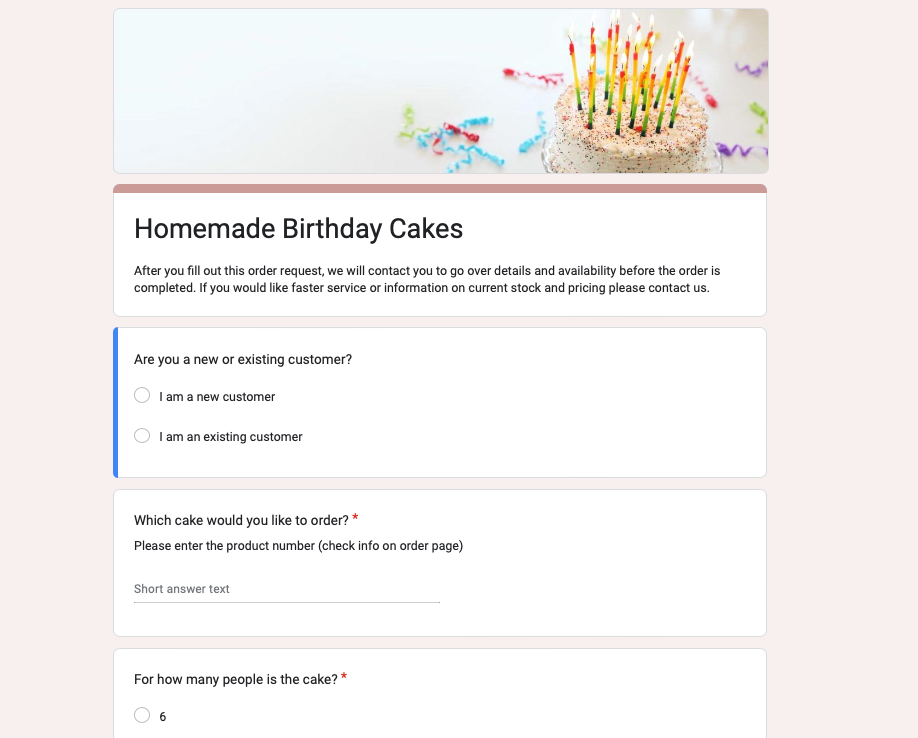
Image 1 – The google form to order the cakes
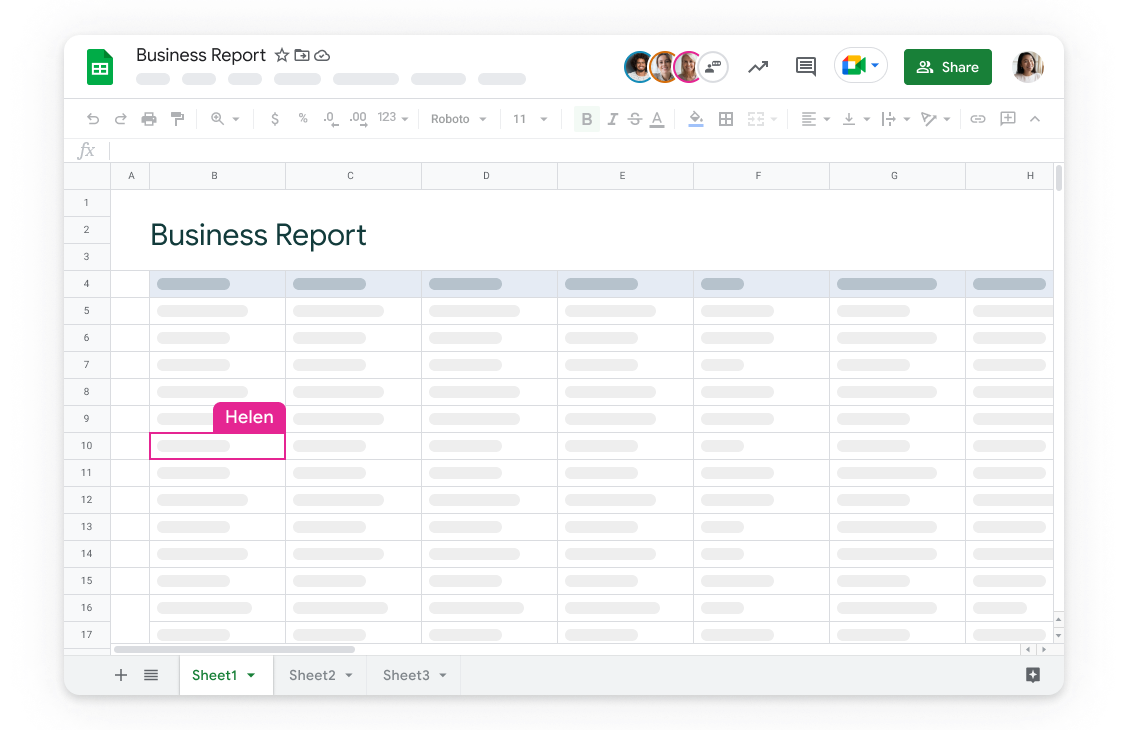
Image 2 – An example of a google sheets report
#1–Setting Up Your Environment
Setting up your environment correctly is crucial to ensuring a smooth integration and effective management of your Google Sheets data. Here's what you must do to prepare your OutSystems application to interact with the Google Sheets API.
Integrating with the Google Sheets Rest API
The first step in using the Google Sheets API in an OutSystems application is to install the 'Google Sheets Integration Service' component, which is available on the OutSystems Forge.
https://www.outsystems.com/forge/component-overview/10253/google-sheets-integration-service
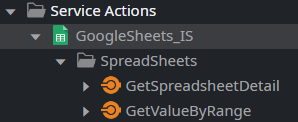
Image 3 – Google Sheets Rest API
Google API Token helper
To call the Google Cloud Platform REST API, we need to have an authentication token.
To retrieve that token, the 'Google API Token' forge component must be installed.
https://www.outsystems.com/forge/component-overview/1363/googleapitoken

Image 4 – Google API Token helper
Google API Service Account
The Google API Token helper connector uses the Google API Service Account with the corresponding private key.
https://www.outsystems.com/forge/component-overview/14490/google-service-account-authentication
Google Developer Account
Create a Google Developer account to get credentials to access your Google Sheets. You need to set up your app's configurations and configure the permissions you want the app to have, e.g., read, write, etc.
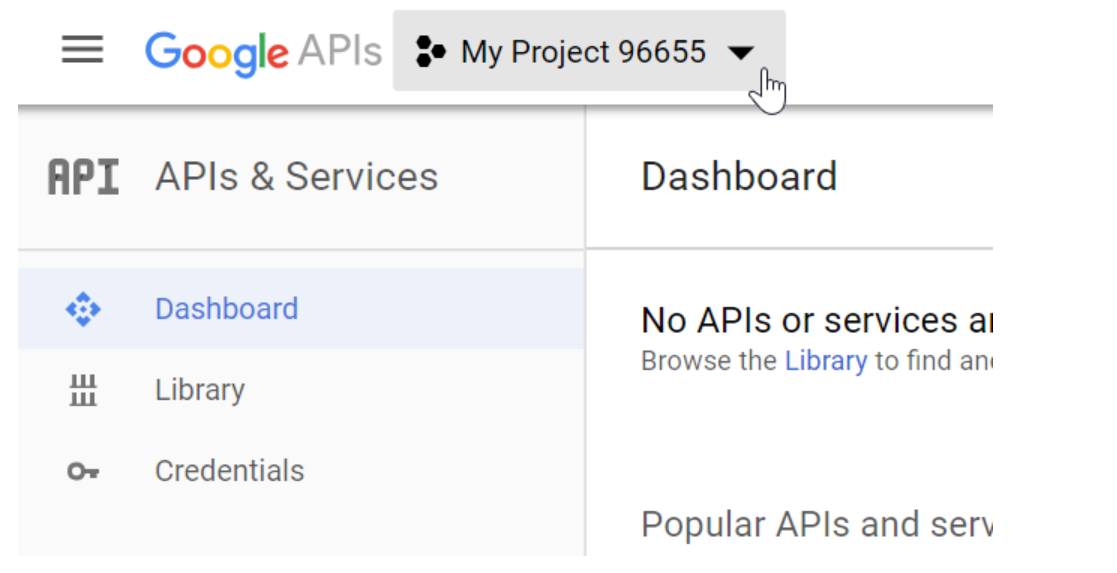
Image 5 – Google Developer Account
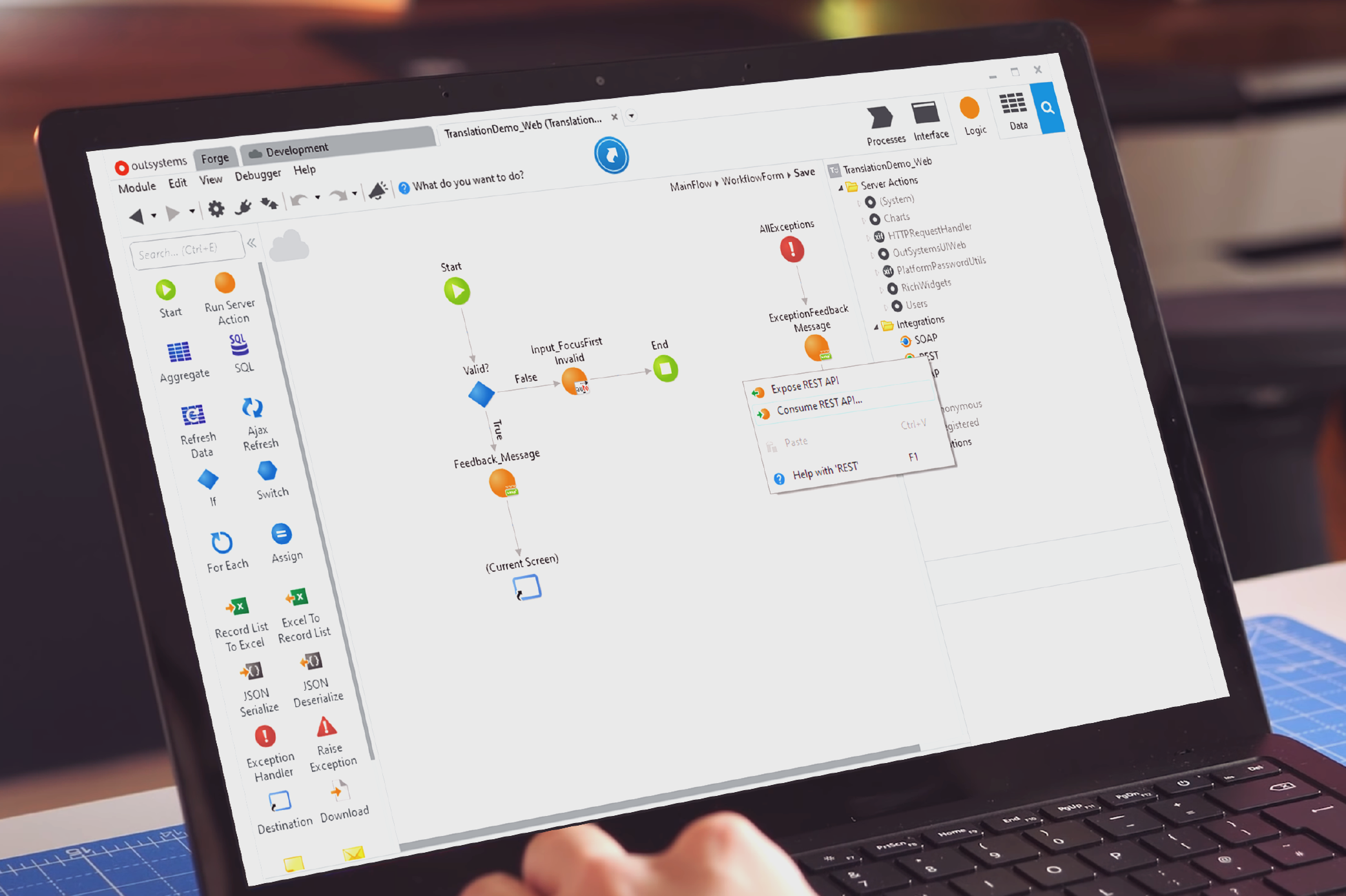
A Closer Look at REST APIs on the OutSystems platform
In this article, we’ll explore what REST API Web Services are and why they are important. We will also explore why they are widely used on the OutSystems Platform, what precautions to take while using them, and some suggestions.
#2–Getting the API Token
Create a Server Action to retrieve the token required to access the spreadsheet details. Utilize the available actions in the Google Sheets Service component to achieve this.

Image 6 – Server Action to retrieve the token to access the spreadsheet details.
We need to ‘deserialize’ a JSON containing information about the developer account created: Client Email and Private Key (This JSON is stored as a resource)
We then use that information to get the token. The GetToken Action receives the client information and the scope we need to reach.
In this case, the scopes are the endpoints we will be using to read data from the spreadsheet:
https://www.googleapis.com/auth/spreadsheets.readonly
https://www.googleapis.com/auth/drive.readonly
#3–Getting the Spreadsheet Details
After getting the Token, you can access the spreadsheet details to get your data.
Using the GetSpreadsheetDetail service action, you’ll get all the information about that particular Google Sheet. In the images below, you have the service action and the result information from the details.

Image 7 – Service action and the result information from the details
#4–Getting the Spreadsheet Data
Once we get the details, we will have the necessary information to extract the data from the spreadsheet using another service action.
The GetValueByRange action will get a set of values for a defined range. The range follows the A1 notation.
Check the following page for more information on getting the data: https://developers.google.com/sheets/api/reference/rest/v4/spreadsheets.values/get
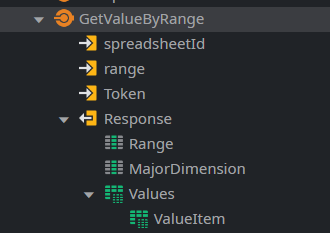
Image 8 – GetValueByRange action will get a set of values for a defined range
#5–Saving data to DB
Storing the data in the Database follows the ETL method: Extract, Transform, and Load. ETL process (Extract, Transform, Load)
First, you need to Extract the data. This involves getting the token, identifying the spreadsheet, and defining the data to retrieve.
Next, the data is Transformed. This step is crucial as it involves creating a structure that maps the data from the spreadsheet to the desired data model;
Ultimately, you Load the data into the Database.
Read more about this method: ETL process (Extract, Transform, Load)

Image 9 – Storing the data in the Database follows the ETL method
#6–Visualizing Data and Managing Deliveries Efficiently
Now that the setup is complete, you can use the integrated Google Sheets and OutSystems environment to retrieve and display data effectively on your application screens. With this capability, you can monitor your deliveries in real-time. Moreover, you can create dynamic dashboards and customized screens to track order statuses, delivery deadlines, and other critical metrics.
In summary, your system has the potential to enhance operational efficiency by providing a comprehensive overview of your business operations at a glance, making it easier for you to manage and fulfill customer orders seamlessly.

Image 10 – You can now monitor your deliveries in real-time
Best Practices
To keep track of the last data retrieved and allow updating the database with new data coming from the spreadsheet, you can add a history table to your data model to have it constantly updated with the last row read. You can get the information about the number of the row in the response returned from the GetSpreadsheetDetail service action and then add it to the range parameter to get values as described in the chapter above (#4–Get the Spreadsheet Data).
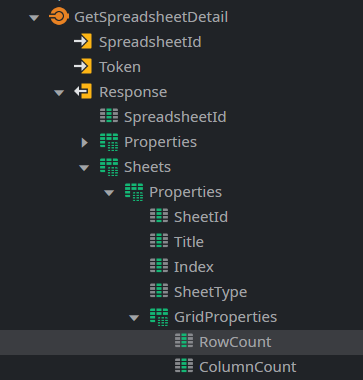
Image 11 – GetSpreadsheetDetail service action
Closing
This guide provides a step-by-step process to demonstrate how OutSystems applications can integrate effortlessly with Google Sheets. By establishing this connection, you can continuously retrieve data from spreadsheets and update information efficiently, utilizing OutSystems' capabilities to display updated data dynamically on screens.
Additionally, we have curated a list of resources to assist you in building and optimizing this type of integration:
https://www.outsystems.com/forge/component-overview/10253/google-sheets-integration-service
https://www.outsystems.com/forge/component-overview/1363/googleapitoken
https://www.outsystems.com/forge/component-overview/14490/google-service-account-authentication
https://developers.google.com/sheets/api/reference/rest/v4/spreadsheets.values/get
Like this article? Share it:


